How to Make an Animated GIF — Complete Guide
Making an animated GIF with Gifmake takes under 3 minutes from start to download. This guide covers every step — from uploading your images to adjusting frame timing and exporting your final GIF. No software to install, no account to create, no watermark on the result.
→ Open Gifmake and start nowStep-by-Step: Make a GIF in 5 Steps
Upload your images or existing GIF
Click Upload Images or GIF on Gifmake and select your files. Supported formats: PNG (including transparent), JPG, JPEG, and GIF. You can upload up to 250 frames, with a maximum of 8 MB per file. If you upload an existing .gif file, it is automatically split into individual frames.
💡 Tip: upload all frames at once by holding Ctrl/Cmd while selecting filesArrange your frames
All uploaded images appear as numbered thumbnails. Drag and drop them to reorder the animation sequence. Click the ✕ button on any thumbnail to remove that frame. The number on each thumbnail shows its position in the final GIF.
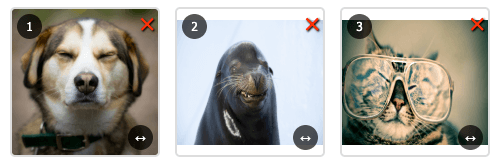
Edit individual frames (optional)
Click any thumbnail to open that frame in the built-in editor. Switch between Draw mode (brush tool with colour picker and size control) and Text mode (add captions with custom colour). When finished, click Save to apply your changes to that frame before moving to the next one.
⚠️ Don't forget to click Save — unsaved edits are lost when you close the editorSet animation speed and output size
Use the GIF Speed slider to set a global frame delay in milliseconds. Lower values = faster animation. You can also type a custom delay directly on any frame thumbnail for per-frame timing control. In the Output Dimensions section, set your desired width and height in pixels, or choose a size preset (320×240, 480×270, 640×480, 800×600). Check Maintain aspect ratio to avoid distortion.
💡 Tip: for Discord emotes, set output to 128×128 pxGenerate and download your GIF
Click the green Generate GIF button. Gifmake processes everything in your browser — your images never leave your device. When ready, the animated GIF preview appears above the thumbnails. Click Download GIF to save it. No watermark. No account. No waiting.
💡 Tip: if you change speed or size after generating, click Generate GIF again to updateChoosing the Right Animation Speed
The frame delay (in milliseconds) determines how fast your GIF plays. Here's a quick reference:
| Delay | Speed | Best for |
|---|---|---|
| 20–50 ms | Very fast | Rapid flicker, energetic effects, strobe-style |
| 80–150 ms | Fast | Smooth animation, reaction GIFs, emotes |
| 200–400 ms | Medium | Clear transitions, step-by-step tutorials |
| 500–1000 ms | Slow | Slideshow GIFs, one image per second |
| 2000–5000 ms | Very slow | Dramatic pauses, emphasis on key frames |
You can mix speeds by setting individual frame delays — useful for pausing on a punchline frame in a meme GIF.
Tips for Better GIFs
Use consistent image dimensions
Upload images that are all the same size for the smoothest result. Mixed dimensions get scaled to your output size.
Use flat colours for small files
GIF supports 256 colours per frame. Flat illustrations compress far better than photographs.
Use PNG for transparency
If your frames have transparent backgrounds, use PNG files. Gifmake preserves alpha channels automatically.
Reduce size for Discord/email
For Discord emotes (max 256 KB), keep frames under 10 and use flat colours at 128×128 px.
Plan your loop
Make sure your last frame transitions smoothly back to the first frame for a seamless infinite loop.
Add text for memes
Use Text mode to add captions on specific frames. Set a longer delay on the captioned frame so it's readable.
How to Edit an Existing GIF
Already have a GIF you want to modify? Gifmake works as a GIF editor too:
- Upload your .gif file — it splits into individual frames automatically
- Delete frames to shorten or trim the animation
- Drag to reorder frames and change the sequence
- Draw or add text on any frame using the built-in editor
- Change the animation speed or output dimensions
- Click Generate GIF to export your edited version — watermark-free
For a full breakdown of editing features, see the GIF editor guide.
Frequently Asked Questions
How do I make a GIF from photos for free?
Upload your JPG or PNG photos to Gifmake, arrange them in order, set the speed and output size, click Generate GIF, and download. Free, no account needed.
What image formats can I use to make a GIF?
PNG (including transparent), JPG, JPEG, and GIF files are all supported. Up to 250 frames, 8 MB per file.
How long does it take to make a GIF?
Most GIFs are ready in under 3 minutes. Generation happens instantly in your browser once you click Generate GIF.
Can I make a GIF without a watermark for free?
Yes. Gifmake is completely free and never adds a watermark. Your downloaded GIF is 100% clean.
Does making a GIF require an account?
No. Gifmake requires no registration, no email, and no login of any kind.
Can I make a GIF on my phone?
Yes. Gifmake works in mobile browsers on iOS and Android — no app download required.

